Act right from the notification, clear your head in one tap
This guide is for the CleverNote: Notes & Reminders app. Explore the other blog
The CleverNote: Notes & Reminders app has two new things. Notifications now have buttons, so a reminder gets handled right from the notification: Done, Snooze 1h or Tomorrow. And new widgets let you jot down, record or take a photo in one tap, without hunting for the app. The buttons are already live, through an automatic app update. The widgets arrive with version 1.2.0.
Act right from the notification
The reminder shows up at the right time, but you’re in the middle of something else. Before, you had to open the app, find the reminder and only then decide. Now the decision comes with the notification itself.
On iPhone, touch and hold the notification to see the buttons. On Android, they sit below the text.
Each notification brings the buttons that fit it:
- Reminder: Done, Snooze 1h, Tomorrow.
- Deadline (a document that expires, a return, a warranty, a subscription’s free trial): All set, Remind me tomorrow. On the day itself: All set, Snooze 1h.
- Promise (something you said you’d do): Done, Remind me tomorrow. On the day: Done, Snooze 1h.
- What you’re owed (money, a document): Received, Remind me tomorrow.
Tap a button and CleverNote opens right on the Now card, with your choice already saved, and confirms it: “Marked as done.” or “Snoozed until 1:30 PM.” On the web, the same buttons live on the Now card.
Clear your head in one tap
The widgets arrive with version 1.2.0 of the app: on Android through Google Play, on iPhone through the App Store as soon as Apple approves it.
An idea shows up while you’re out and, by the time you find the app, it’s gone. A widget shortens that path: one tap and CleverNote opens right where you need it, already recording, with the text field ready or with the camera open.
The widget shows none of your notes. It’s just the way in: whatever you jot down, record or photograph becomes a note, and CleverNote sorts it out later, with a title, a category, dates, people and amounts.
On iPhone
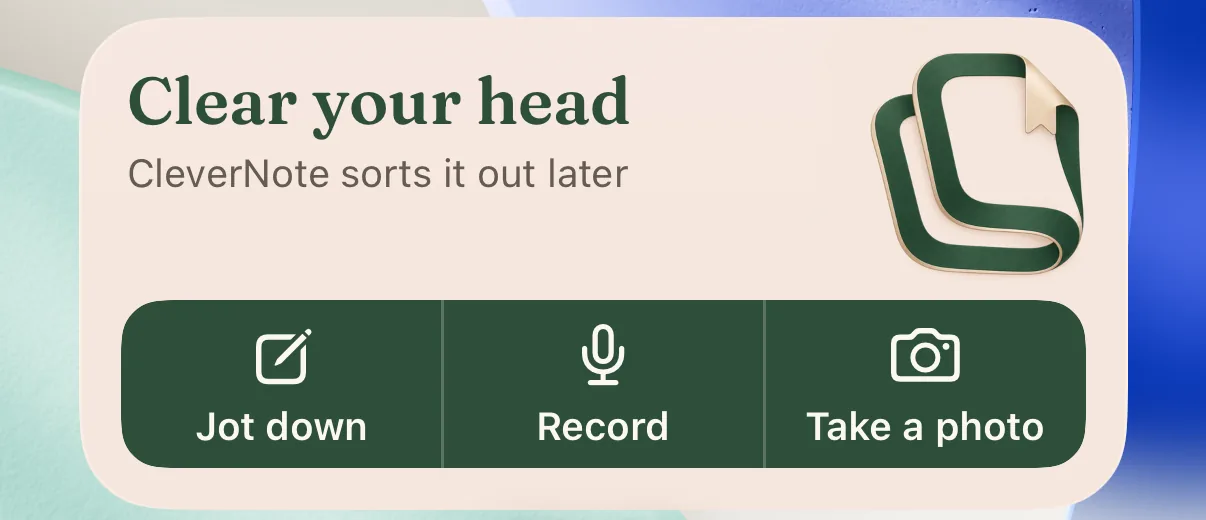
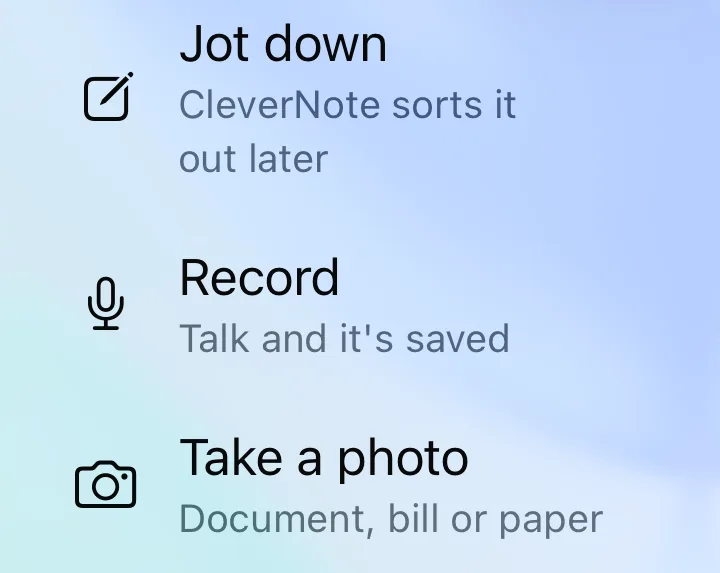
On the Home Screen. The small widget records in one tap: “Talk and it’s saved”. The medium one, pictured above, says “Clear your head” and has Jot down, Record and Take a photo.
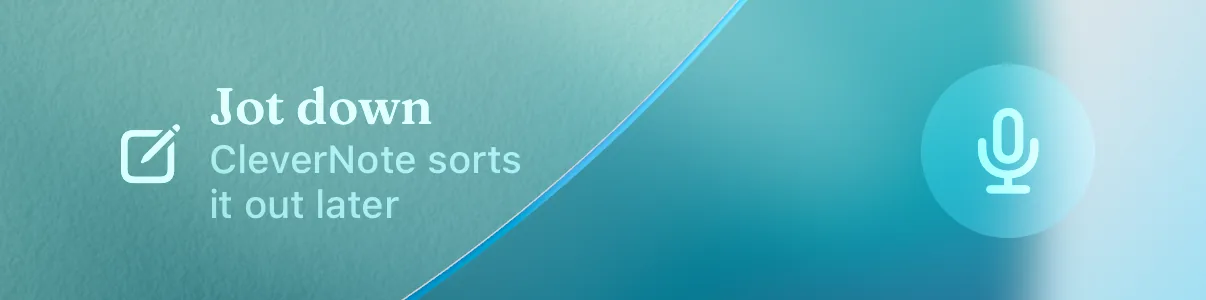
On the Lock Screen. Jot down, plus a round button to record.
In Control Center (iOS 18 or later). Three controls: Jot down in CleverNote, Record in CleverNote and Take a photo in CleverNote.
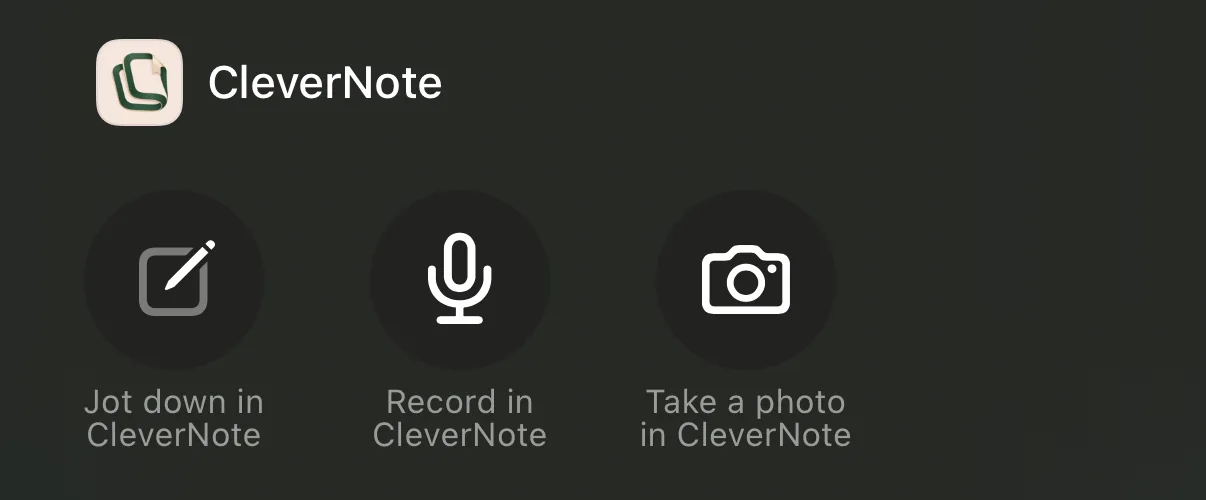
On the app icon. Touch and hold the CleverNote icon and pick Jot down, Record or Take a photo.
With Siri and the Shortcuts app. Say “Jot down in CleverNote” or “Record in CleverNote”.
On Android
The home screen widget adapts to its size: wide, it has Jot down, Record and Take a photo; narrow, just Record. And when you touch and hold the CleverNote icon, you get shortcuts to jot down, record and take a photo.
What else changed
The Now card. On Home, the Now card shows what’s due today, what’s coming up in the next few days and, under “Want to reschedule?”, what slipped. The buttons are the same as the notification’s, and that section also has “Let it go”. No overdue counters.
CleverNote found. After you save a note, CleverNote shows what it found in it: a reminder, a deadline, a promise, a person, an amount. When a date is only a suggestion, it asks before setting the alert: Remind me, Adjust or No need.
Keep reminding me until I respond. For what can’t slip. When you create or edit a reminder, turn it on: “With no response, CleverNote reminds you again every 30 minutes, up to 3 times. Phone only, never after 10 PM.”
A link’s label becomes its title. Shared an Instagram post and typed a short label, like “bread recipe for Saturday”? That label is now the note’s title, in your own words. If you only wrote “look at this!”, CleverNote titles it from the content, as always. And whoever posted it becomes a tag, so you can find it later. This applies to links you save from now on.
See also: how CleverNote finds reminders in your notes.
Frequently asked questions
- I don't see the buttons on the notification. What do I do?
- On iPhone, touch and hold the notification. On Android, the buttons sit below the text; if the notification is collapsed, pull it down. Event notifications still come without buttons. The buttons arrive in an automatic app update: if they don't show up yet, open CleverNote, close it and open it again, and check that it's on the latest version from the store.
- How do I add the widget?
- Update CleverNote: Notes & Reminders to version 1.2.0 (on iPhone, once it reaches the App Store). Then touch and hold an empty area of the Home Screen and add the Quick capture widget. For the Lock Screen, touch and hold it and choose Customize. On Android, touch and hold the home screen and open Widgets.
- Do I need a paid plan?
- The widgets, the reminder buttons and the keep-reminding option work on every plan. Notifications for deadlines, promises and what you're owed, which CleverNote finds on its own in your notes, are part of the paid plan.
Try the app from this guide with your CleverNote account.
Open CleverNote: Notes & Reminders
CleverNote: Notes & Reminders