Reminders extracted automatically from your notes
This guide is for the CleverNote: Notes & Reminders app. Explore the other blog
Reminders without friction
The problem with traditional reminder apps is friction: you need to stop what you’re doing, open another app, navigate to create event, fill in date, time, title. All that just to not forget to renew a subscription.
In CleverNote, just note it. Mentioning the date and event is enough for the system to create the reminder automatically.
How extraction works
Every note goes through Tier-2 extraction, which includes searching for date mentions with appointment context. CleverNote identifies patterns like:
- “remember to X on [date]”
- “deadline for X is [date]”
- “schedule X for [date]”
- “expires [date]”
- Dates with implicit action (“car maintenance, 3 months,” “passport expires July/2026”)
For each pattern found, CleverNote extracts:
- Reminder title: what to do
- Date and time: when (time is inferred or left blank)
- Context: link to the source note
Relative dates are resolved against the note’s creation date. “In 3 months” in a June 1st note becomes “September 1st.”
Date types the system recognizes
There are no fixed conversion rules. The AI interprets the expression using the note’s date as the reference. Examples:
| Mentioned in note | Interpreted as |
|---|---|
| ”July 15th” | 07/15 of the current year (or next, if it already passed) |
| “next week” | A day in the week following the note’s date |
| ”in 30 days” | The note’s date plus 30 days |
| ”July/2026” | A date in July 2026 |
| ”passport expires in 2027” | An approximate date in 2027 |
| ”before end of month” | Around the end of the current month |
Viewing and managing reminders
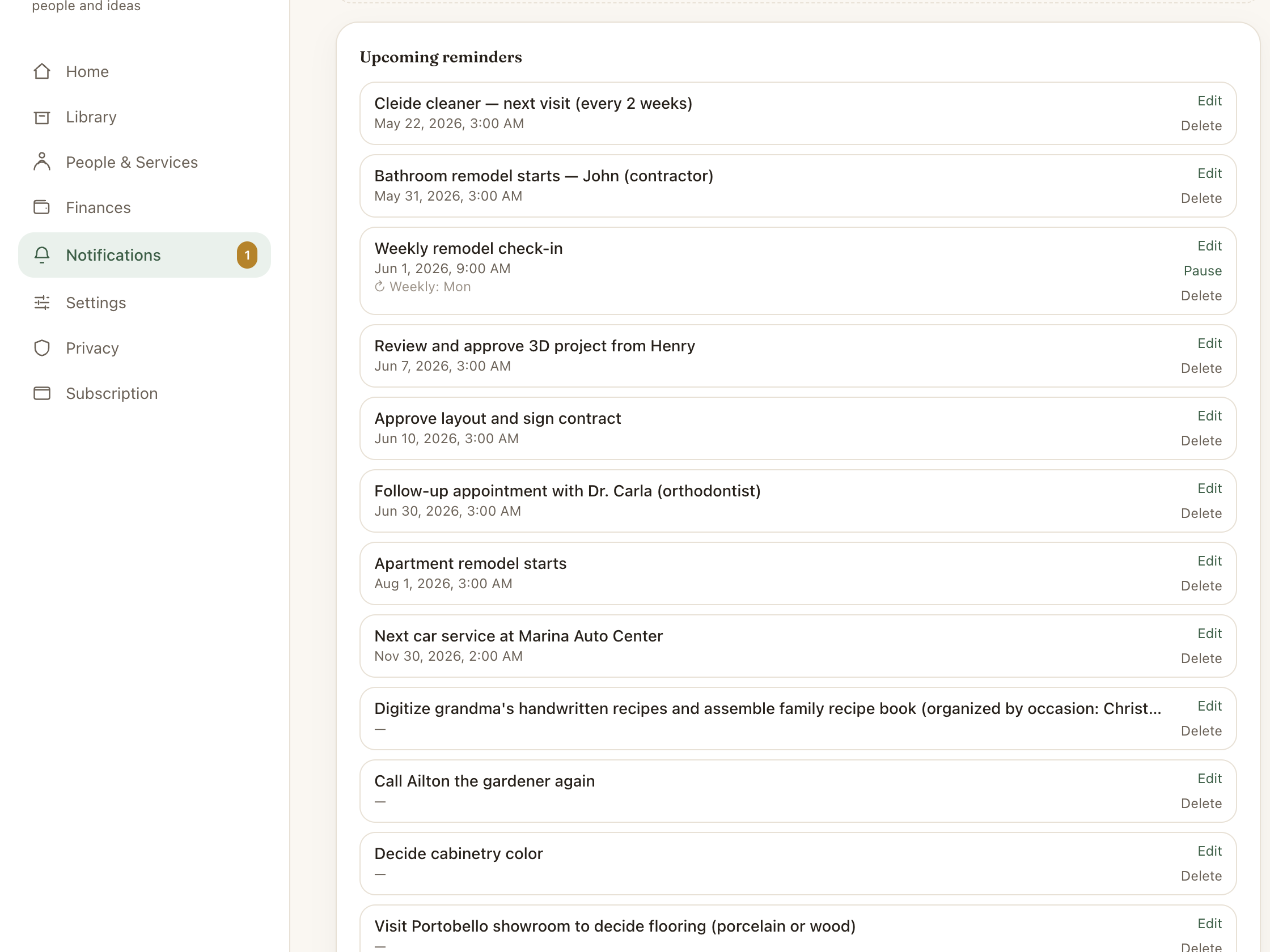
In Notifications, you see a single list of active reminders and events, ordered by date. Alerts for ones that have already come due show up in the notifications feed.
For each reminder you can:
- Edit: adjust the title, date and time or location
- Add recurrence: turn it into a recurring event (and later pause or resume the series)
- Delete: remove the reminder
When CleverNote proposes a probable date for an action with no firm deadline, you can confirm it (it becomes a dated alert) or decline it (it stays a task and never fires on its own).
Reminders vs. recurring events
Reminder = single occurrence, extracted automatically or created manually. Ideal for deadlines, expirations, appointments.
Recurring event = series with a pattern (every Monday, every month, every 3 months). Ideal for periodic payments, reviews, standing meetings. See the post on recurring events.
Correcting a wrongly extracted reminder
If the date or title were extracted incorrectly, you have two options:
- Edit directly: tap the reminder in Notifications and edit the fields
- Correct via chat: “the insurance renewal deadline is August 20th, not the 15th”, CleverNote corrects the reminder and the source note
See also: Recurring events, Proactive memory resurfacing, Text capture
Frequently asked questions
- Does CleverNote understand relative dates like 'next week'?
- Yes. The system resolves relative dates using the note's creation date as anchor. 'Next week' in a Wednesday note becomes a specific date the following week.
- Can I create recurring reminders?
- Yes. You can add recurrence after a reminder is created (daily, weekly, monthly, with defined or open-ended end). See the post on recurring events.
- Where do reminders appear?
- In Notifications in the app. You also receive push (mobile) and email if configured.
Try the app from this guide with your CleverNote account.
Open CleverNote: Notes & Reminders
CleverNote: Notes & Reminders