
How to Save Emails as Notes Automatically
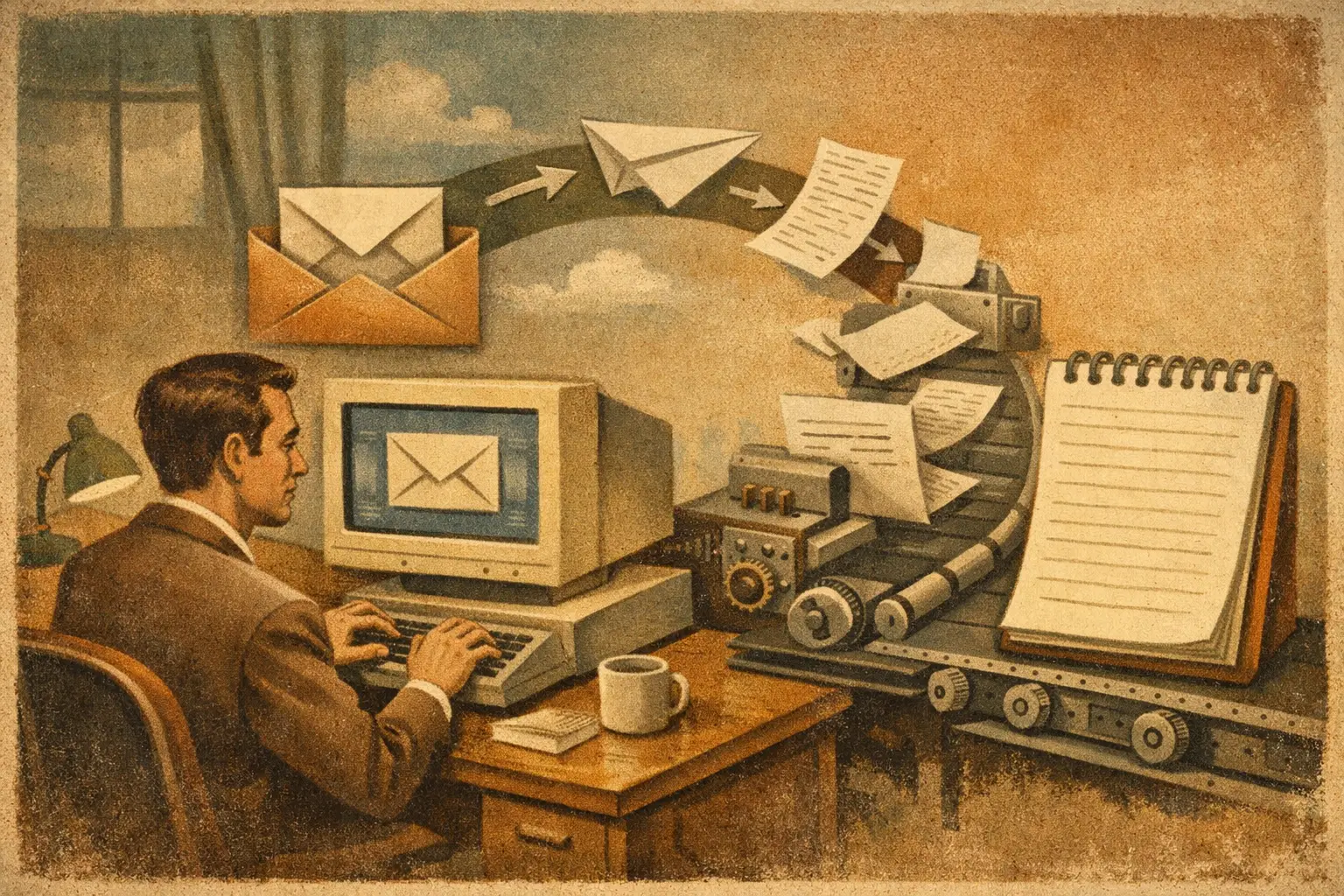
An email saying “payment received” can matter more than a carefully written note. So can the thread where a contractor confirms the date, the message containing a return label, or the client approval buried between replies. The goal is not to treat your inbox as a second notes app. It is to save emails as notes automatically when they become part of your real-world memory.
That distinction changes everything. You do not need to archive every newsletter, promotional offer, and routine notification. You need a system that captures the emails you may need to find later, connects them to the people and events involved, and preserves the original message as evidence.
Why email is a poor filing cabinet
Email is good at receiving information. It is bad at helping you remember it in context.
A single inbox can hold a landlord’s repair confirmation, a pediatrician’s instructions, a customer’s scope change, an airline receipt, a tax document, and an agreement about who is bringing what to a family event. Searching works only when you remember the right words, the right sender, or the approximate date. That is not how people remember life.
Usually, the question is more practical: “What did the plumber quote?” “Did the client approve the new price?” “When does the warranty end?” “Where is the receipt for that charge?”
Leaving those answers in email creates a hidden task: remember that the answer exists, remember which inbox holds it, then search for it under pressure. Forwarding important messages to yourself or starring them can help for a while. But those methods still depend on manual sorting and a memory system built around folders.
What an email note should retain
An automatic email-to-note workflow should do more than copy the body of a message into a blank document. The useful record includes the sender, recipients, date, subject, message content, attachments, and ideally the original email as the source.
Context matters as much as text. A receipt should be connected to the merchant, amount, date, and payment reference. A project update should be connected to the client or colleague. A conversation about a repair should sit beside the estimate, photos, and final invoice.
This is why automatic capture is most useful when the system can read what arrived and turn it into a searchable record. It should recognize that “Your payment of $286.40 was received” is a payment confirmation, not just another message with a generic subject line.
Just as important, it should preserve the source. Summaries are convenient, but a summary without the original email is hard to verify. When a question involves money, commitments, dates, or decisions, being able to open the source message removes uncertainty.
How to save emails as notes automatically without saving everything
The best setup is selective automation. Capture high-value emails by rule, forwarding address, label, or mailbox connection, then let the system organize the useful information after it arrives.
Start with the types of messages that regularly cost you time to retrieve. For most people, that means receipts and invoices, appointment confirmations, travel details, contracts and signed documents, customer or vendor decisions, and messages containing important instructions.
You can keep promotional emails and low-value notifications in the inbox. Automation is not a reason to create a larger digital pile somewhere else. Its job is to reduce the number of places you must search.
Use forwarding when you want control
Forwarding works well for messages that become important unexpectedly. You receive an email from a contractor with a revised estimate, forward it to your notes system, and move on. There is no need to decide which folder it belongs in or copy details into a template.
This approach is especially practical for personal matters and small business work because it puts you in control of what enters your long-term memory. It also avoids granting broad access to an entire mailbox when that does not fit your privacy preferences.
The trade-off is simple: you still need to remember to forward the email. That is fine for occasional, high-stakes messages. It is less effective for recurring documents like monthly invoices or purchase receipts.
Use rules for recurring records
Rules are better when the same kind of email arrives repeatedly. For example, messages from a utility provider, a payroll platform, an online store, or a property manager can be automatically labeled and sent to your notes system.
Set rules based on reliable signals: a specific sender domain, a consistent subject phrase, or a dedicated email alias used only for receipts. Avoid rules that are too broad. A rule for every email containing “invoice” may capture newsletters, sales pitches, and irrelevant threads.
Test each rule for a week before assuming it is correct. Automatic capture should lower your workload, not quietly fill your records with clutter.
Use a mailbox connection when retrieval matters most
A connected mailbox can make capture easier because you do not have to forward individual messages or maintain many rules. It can also help identify related threads, attachments, contacts, dates, and transaction details.
This option depends on what you are comfortable sharing and what the service actually accesses. Before connecting an inbox, check whether access is read-only, whether you can disconnect it at any time, and how the system handles original messages and attachments. Convenience is valuable, but email often contains sensitive personal and business information.
Turn captured emails into answers, not archives
Saving messages is only the first step. The practical value appears when you can ask questions in everyday language and get an answer tied to the email that supports it.
Imagine you forwarded a conversation with a painter, an estimate PDF, and a receipt for the deposit. Months later, you ask: “How much have I paid the painter, and what is left?” A useful personal memory system can connect the person, quoted total, deposit amount, and original messages instead of making you reconstruct the answer manually.
The same applies at work. A freelancer may ask, “What did Jordan approve for the website revision?” A parent may ask, “What time is the school meeting on Thursday?” A homeowner may ask, “Which filter size did the HVAC company recommend?” These are not note-taking questions. They are retrieval questions.
CleverNote is designed around that practical shift: capture the material, ask a question, and check the cited source when you need proof. The point is not to create a beautifully organized library. The point is to find the answer before the call ends, the payment is due, or the contractor arrives.
Keep the original message visible
Automation can make information easier to read, but it should not make it harder to trust. Extracted dates can be wrong. A receipt can include a refund rather than a charge. An email thread can contain a later correction that changes the first answer.
Look for a workflow that lets you see where a fact came from. If a note says a service visit is scheduled for June 12, you should be able to open the email that states it. If an extracted amount seems incorrect, you should be able to correct it in plain language rather than rebuild the entire record.
This also helps when several people share responsibility. A couple, business partner, or household manager can stop debating what was said and check the original confirmation together.
A simple starting setup
Do not begin by trying to clean ten years of email. Start with the next message that matters.
Forward a recent receipt, appointment confirmation, or decision thread into your notes system. Then capture one recurring category with a narrow rule, such as utility bills or client approvals. After a few weeks, notice which questions you can answer faster and which emails still force you back into the inbox.
Adjust from there. You may find that receipts and warranties deserve automatic capture, while personal conversations are better forwarded selectively. It depends on how much email you receive, how sensitive it is, and which information you repeatedly need to prove or retrieve.
Your inbox does not need to become perfectly organized. It just needs to stop being the only place where your important information lives. Capture what matters while it is in front of you, let the details organize themselves, and keep the original email close enough to verify when life asks for an answer.
Ready to try? CleverNote is free to start, no credit card required.
Try for free