Receipt photo: how CleverNote Finance extracts expenses automatically
This guide is for CleverNote Finance: transactions, budgets and goals. Explore the other blog
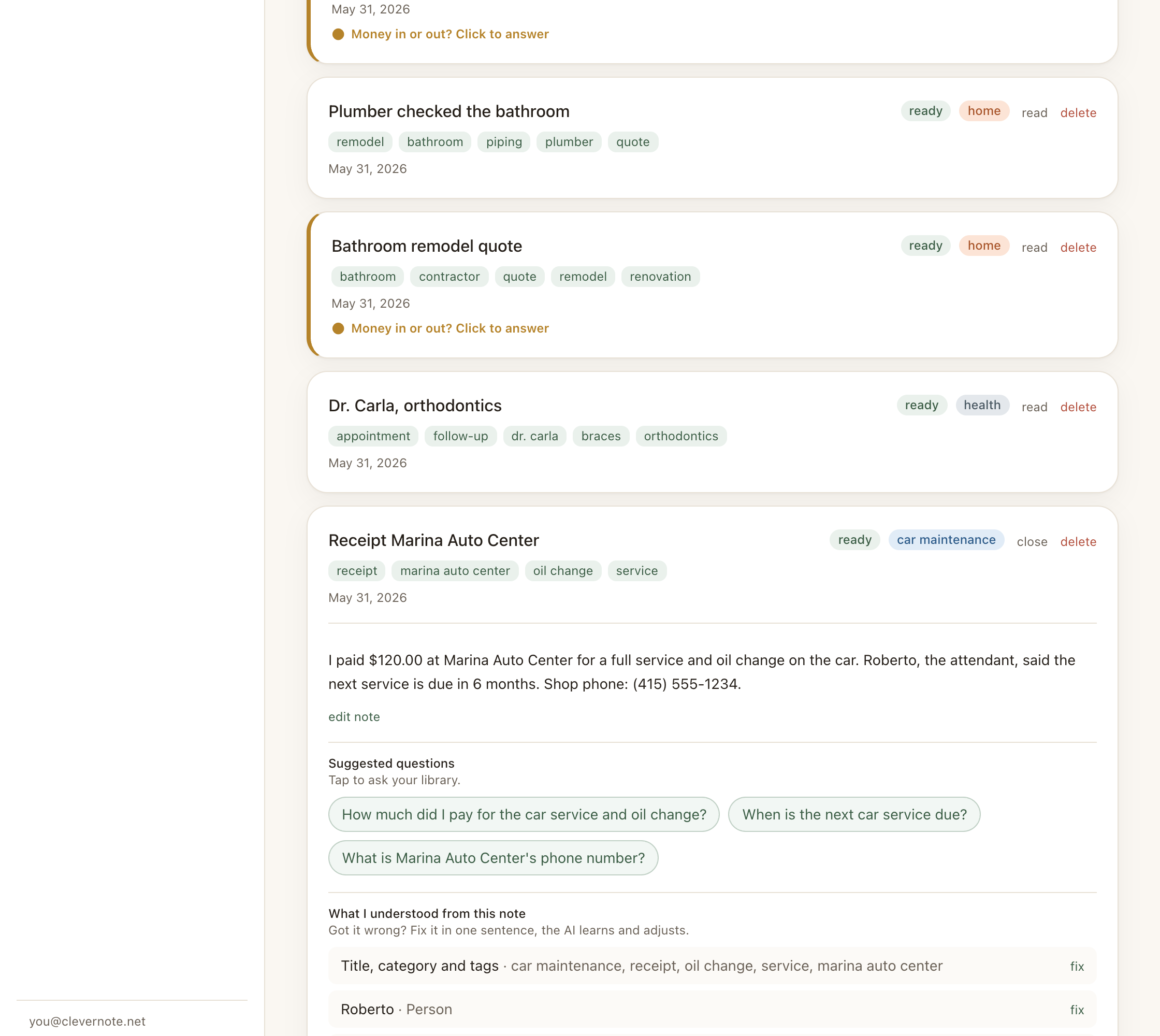
From photo to structured data in seconds
Storing receipts as gallery photos is convenient in the moment but useless later. You accumulate hundreds of images without being able to answer simple questions like “how much did I spend on delivery this month?” or “when was my last car maintenance?”
CleverNote Finance transforms each receipt photo into structured data: amount, date, merchant, category and direction (expense or income). All without typing.
What CleverNote Finance extracts from a receipt
When you photograph a receipt or payment confirmation, the system goes through these steps:
-
Semantic image reading: not simple OCR. The vision model understands the image context, distinguishing useful receipt content from visual “chrome” (borders, logos, interface elements).
-
Structured extraction: from the recognized text, CleverNote Finance extracts:
- Amount: total paid, with cents
- Date: even relative dates or non-standard formats
- Merchant: place name or service provider
- Category: food, transport, healthcare, services, etc.
- Direction: expense (outgoing) or income (incoming)
- Currency: detected and recorded (R$ becomes BRL). Each currency shows up separately in the dashboard, with no automatic conversion between them.
-
Note linking: the structured data is linked to the note (which includes the original image as reference).
How to capture a receipt
In the mobile app (most common)
- Tap the camera icon in the capture bar
- Photograph the receipt
- Submit. The note appears immediately.
In the web app
- Drag the receipt photo to the capture area, or click to select the file
- Optionally add descriptive text (“pharmacy receipt”)
- Submit
In both cases, extraction happens automatically in the background. When complete, you see the expense recorded in the finance dashboard.
Supported document types
The system works well with a wide variety of documents:
- Photographed physical receipts
- Bank transfer confirmations (screenshots)
- Tax invoices
- Credit card statements
- Service invoices (plumber, electrician, etc.)
- Paid bills
For complete bank statements (PDF or multi-page photo), there’s a specific flow with smart deduplication, see the post on bank statement processing.
When direction remains pending
Sometimes CleverNote Finance can’t determine with certainty whether a value is an expense or income (for example, a transfer receipt could be either side). In these cases, the note gets a “pending” indicator and you’re notified to confirm.
Tap the indicator and choose: expense or income. From there, the system uses this information to learn from similar contexts.
Correcting a wrong extraction
If the amount, date or merchant were extracted incorrectly, you don’t need to fill out a form. Just correct it in the note’s conversation box:
“the correct amount is $32.00” “the date is May 15th” “the merchant is CVS Pharmacy”
CleverNote Finance interprets it and applies the correction. Your most recent corrections become examples that guide future extractions.
See also: Finance dashboard, Bank statement processing, Correcting AI extractions
Frequently asked questions
- Does CleverNote Finance recognize receipts in any language?
- Yes. The system detects language automatically and extracts information regardless of the receipt's language.
- What if the extracted amount is wrong?
- You can correct it in one sentence, like 'the correct amount is $47.90'. The AI applies the correction, and your most recent corrections become examples that guide future extractions.
- Does CleverNote Finance differentiate expenses from income?
- Yes. The AI infers direction (expense or income) from context. When ambiguous, it marks the item as pending and asks for your confirmation.
Try the app from this guide with your CleverNote account.
Open CleverNote Finance
CleverNote Finance