How to process bank statements with AI in CleverNote Finance
This guide is for CleverNote Finance: transactions, budgets and goals. Explore the other blog
The bank statement problem
Reviewing statements is tedious. You open the PDF, scroll page by page, try to identify which expenses were frivolous and where you cut back. Without automatic categorization, it’s slow manual work.
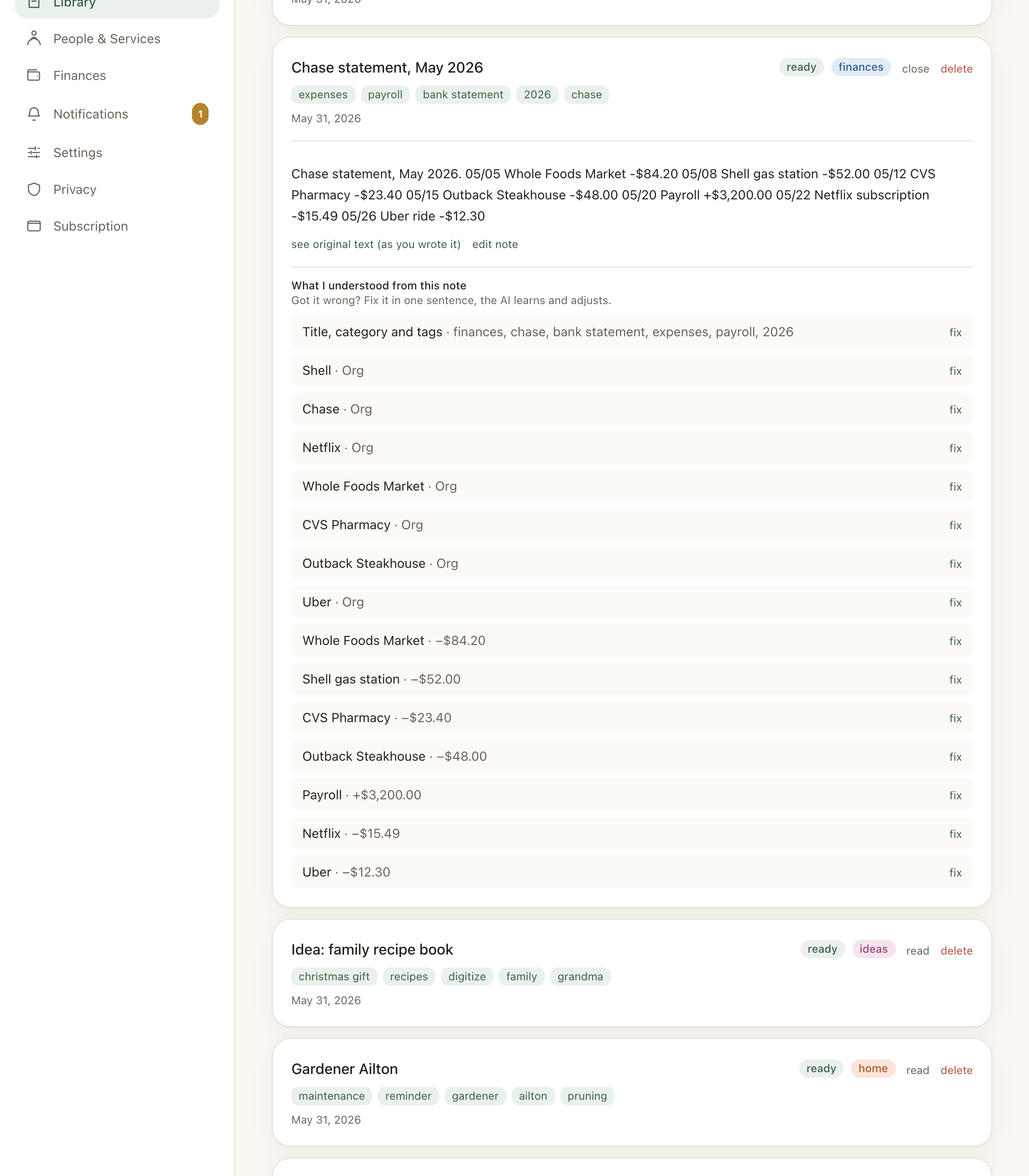
CleverNote Finance transforms this process: you capture the statement as a normal note (photo or PDF), with no separate importer. CleverNote Finance extracts the transactions in background processing, and within minutes they’re all categorized and available for analysis via chat.
How to capture a statement
There is no dedicated importer: the statement comes in like any other note, as a photo or PDF.
PDF statement
- Download the PDF statement from your bank’s website
- In CleverNote Finance, drag the PDF to the capture area or select via the file button
- In the created note, add text like “bank statement [bank] [month/year]” for easy identification
Photo of statement
- Photograph the printed statement page
- Submit as a photo note in the mobile app
- For multi-page statements, submit one photo per page
In both cases, processing happens in the background. You receive a notification when complete.
What gets extracted
For each line of the statement, the system extracts:
- Date of the transaction
- Amount (with sign: debit or credit)
- Description of merchant or operation
- Category inferred by CleverNote Finance (food, transport, services, etc.)
Transactions are linked to the statement note and available in the finance dashboard.
Smart deduplication
Bank statements frequently overlap: May’s statement has the last days of April, April’s has the last days of March. Without deduplication, you’d register some transactions two or three times.
When the statement shows the account balance after each transaction, that balance becomes the fingerprint that discards repeats between overlapping statements: it tells apart two identical transactions on the same day and matches the same transaction across different statements. Without a balance, the system uses date, amount and merchant as a best effort. In every case, only transactions that have a date are deduplicated.
If you capture the same statement twice by accident, the system discards the duplicate without creating extra transactions.
Identifying and correcting
After import, the dashboard shows the new transactions. To review:
- Filter the dashboard by the statement period
- Check categories that seem incorrect
- To correct: “the Target purchase was grocery, not department store”, CleverNote Finance applies the correction
For transactions with ambiguous direction (internal transfers, for example), the “pending” status appears and you confirm.
Building retroactive history
If you’re just starting, capture statements from the past 6-12 months. This feeds the dashboard with real history and enables more useful analysis:
"How did my food spending look in the first half of 2025?"
"Is my spending on services increasing or decreasing?"
"Which month did I have the highest positive balance?"
With history, CleverNote Finance can answer these questions based on your real data.
See also: Finance dashboard, Financial plans, Receipt photos
Frequently asked questions
- Does CleverNote Finance avoid duplicates when importing two statements from the same period?
- When the statement shows the account balance after each transaction, that balance becomes the fingerprint that discards repeats between overlapping statements. Without a balance, the system uses date, amount and merchant as a best effort. Only transactions that have a date are deduplicated.
- Does it work with any bank?
- Yes, as long as the statement contains date, amount and description in readable text (digital PDF or photo with good lighting). Banks with proprietary statement formats may have variable results.
- What about internal transfers between own accounts?
- CleverNote Finance tries to identify internal transfers from context. You can always correct the direction (in/out) or delete duplicate entries.
Try the app from this guide with your CleverNote account.
Open CleverNote Finance
CleverNote Finance