Finance dashboard: understand your expenses and income at a glance
This guide is for CleverNote Finance: transactions, budgets and goals. Explore the other blog
Personal finance without spreadsheets
Tracking expenses with spreadsheets requires constant discipline: you need to manually log every expense, update categories, create formulas. Most people give up within weeks.
CleverNote Finance does this automatically as a byproduct of normal use: every photographed receipt, every imported statement, every note with an amount becomes data in the finance dashboard.
What the dashboard shows
Monthly summary cards
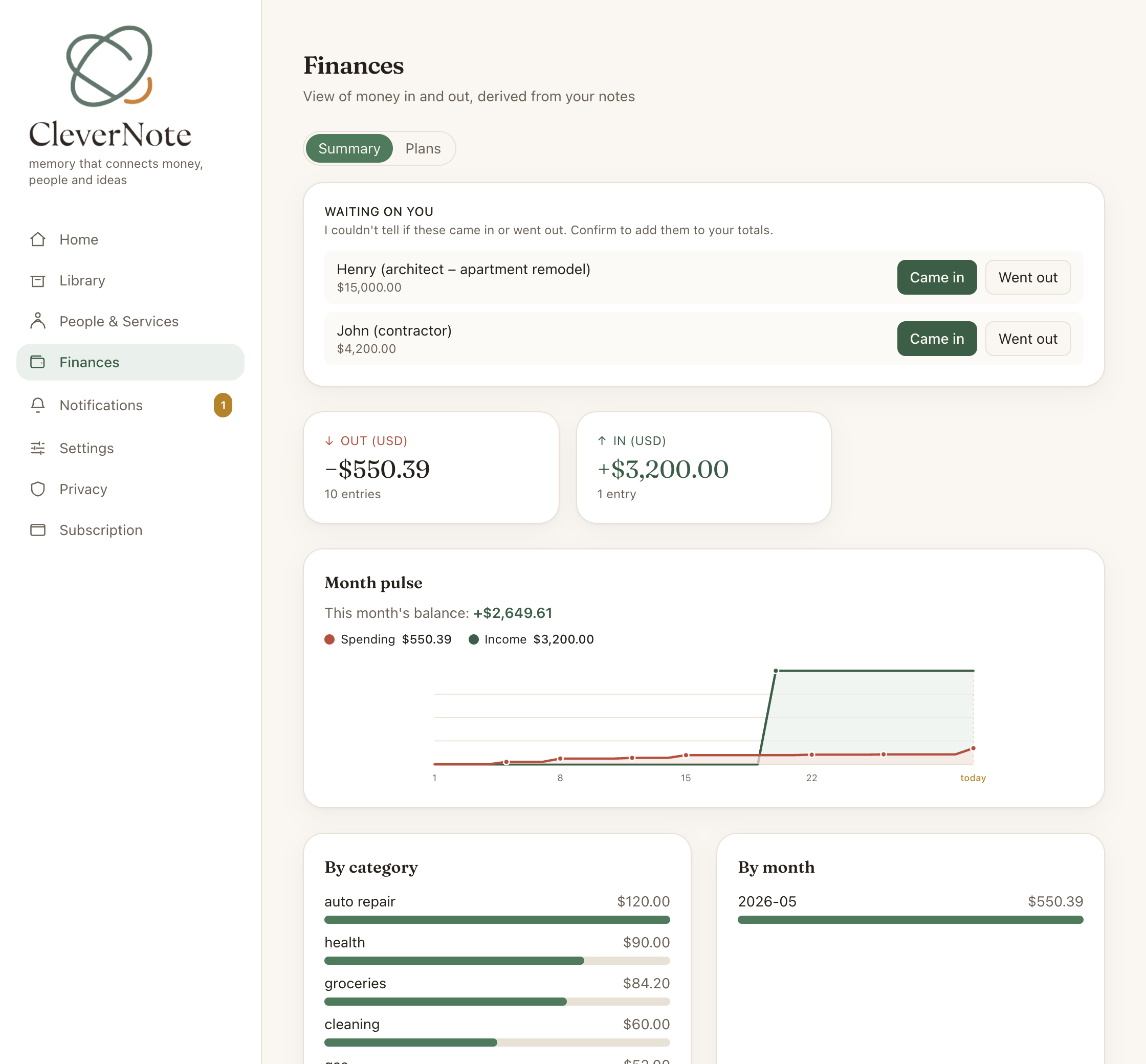
At the top: an outgoing card (expenses, in terracotta) and an incoming card (income, in green) for each currency. The month balance (income minus spend) is not a separate card: it appears as the headline of the month Pulse, in the primary currency.
Evolution chart
A line chart shows cumulative outgoing and incoming trends over the days of the month. You can see if expenses are concentrated at the beginning or end of the period, and how income arrived.
Top expenses (Pareto)
The 6 merchants with the highest spending in the current month, in descending order. Useful for identifying where money is going most. Categories live in a separate panel, showing the top 8.
The by-month view
The by-month evolution chart shows the last 6 months, calculated by calendar month (1st to 30/31st), so you can see the trend. The month Pulse and the top expenses are always for the current month. There are no arrows to navigate between months.
Where the data comes from
The dashboard consolidates three source types:
- Receipt photos: each captured photo with amount and date becomes a transaction
- Statement import: a bank or card statement generates multiple transactions at once
- Text notes: any note that mentions an amount and a merchant can generate a transaction
All transactions are linked to their source note. Clicking an item in the dashboard takes you to the note that generated that data.
When an expense stays “pending”
Sometimes CleverNote Finance extracts a value but can’t determine with certainty if it’s an expense or income (transfers are a common case). The transaction gets “pending” status and you’re notified.
Tap the “pending” indicator and choose: outgoing or incoming. After confirming, the transaction enters the dashboard normally.
Crossing finance and entities
The dashboard is an aggregated view, but chat allows more specific questions:
"Which service provider cost me the most this year?"
"How are my healthcare expenses compared to last month?"
"What are the recurring monthly fixed expenses?"
Chat uses the same underlying data but can answer in natural language with additional context from your notes.
Tip: use statement capture to build history
If you’re just starting out, import your bank statements from the last 6 months. In hours you have a dashboard with months of retroactive history, without re-entering anything.
See also: Receipt photos, Bank statement processing, Financial plans
Frequently asked questions
- Do I need to categorize expenses manually?
- No. CleverNote Finance categorizes automatically based on receipt or note context. You can correct the category in one sentence if needed.
- Does the dashboard support multiple currencies?
- Yes. Each currency is shown separately, with one card per currency. The analytics (categories, months, places, pulse) use the currency with the most entries, and you can switch with a tap. There is no automatic conversion between currencies.
- Is my financial data private?
- Yes. All data is isolated in your account. No data is shared with third parties or used to train models.
Try the app from this guide with your CleverNote account.
Open CleverNote Finance
CleverNote Finance