Save from the web: clip pages into CleverNote with one click
This guide is for the CleverNote: Notes & Reminders app. Explore the other blog
Bookmarks become a list no one reads
Saving a link in your browser creates a list with no context and no search by meaning. Weeks later you remember saving “something about pricing,” but you can’t find it.
Save from the web sends the content straight to your archive. There, CleverNote enriches the text, creates embeddings and links the note to your others. Later you find the article by asking “what was that post about pricing I saved?” even without remembering the title.
A button on your bookmarks bar, nothing to install
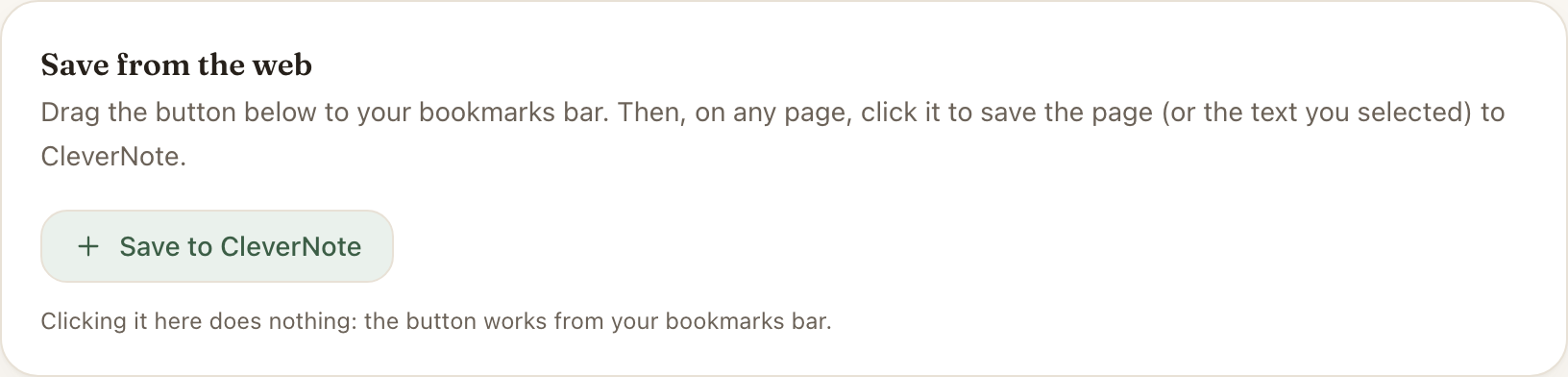
Save from the web is a bookmarklet, not an extension. You set it up once:
- In CleverNote, open Settings and find the Save from the web block
- Drag the Save to CleverNote button onto your browser’s bookmarks bar
Done. The button sits there, waiting.
How to save a page
On any page, click Save to CleverNote in your bookmarks bar. CleverNote saves the whole page (title, link and the main content, without menus or ads). If you selected an excerpt before clicking, it saves only that excerpt, with the source link as a reference.
Since you are already logged in to CleverNote, there is nothing to authorize and no token to paste. Your session handles it.
What CleverNote does with what you saved
The note it creates goes through the same enrichment as any note:
- Title extracted or generated when missing
- Category and tags assigned by CleverNote
- People, companies and dates extracted from the text
- Embeddings created for semantic search
If the article mentions someone already in your archive, CleverNote suggests linking them.
Coming soon: an Edge extension
A native Microsoft Edge extension is on the way, for anyone who prefers a fixed button in the browser bar. In the meantime, the bookmarklet already works in any desktop browser, today.
Usage tips
For research and references: select the exact excerpt before saving, instead of the whole page. That way search returns the right passage, not the generic page.
For tracking providers: save profile pages (Google Business, LinkedIn, the provider’s website) so CleverNote can extract the contact and link it to the person’s record.
For meeting prep: beforehand, save the LinkedIn profile or the company website. Then ask “what do I know about [name]?” for a summary.
See also: How to forward emails, Capturing photos and PDFs, Semantic search
Frequently asked questions
- Do I need to install an extension?
- No. Save from the web is a bookmarklet: a button you drag once to your browser's bookmarks bar. It works in any desktop browser, with no installation.
- Does clipped content keep its original formatting?
- CleverNote saves the text you selected or the main page content, as clean Markdown. Formatting is simplified on purpose, so search by meaning works better.
- Is it secure?
- Yes. The bookmarklet saves using your already-logged-in CleverNote session. There is no token to copy and no password to type, and you control everything from your account.
Try the app from this guide with your CleverNote account.
Open CleverNote: Notes & Reminders
CleverNote: Notes & Reminders