How to forward emails to CleverNote
This guide is for the CleverNote: Notes & Reminders app. Explore the other blog
Email as a capture channel
Much of what you need to save arrives by email: order confirmations, invoices, PDF contracts, service instructions, recipes, relevant newsletters. Forwarding to CleverNote is faster than copy-pasting, and ensures attachments are captured too.
Your personal address
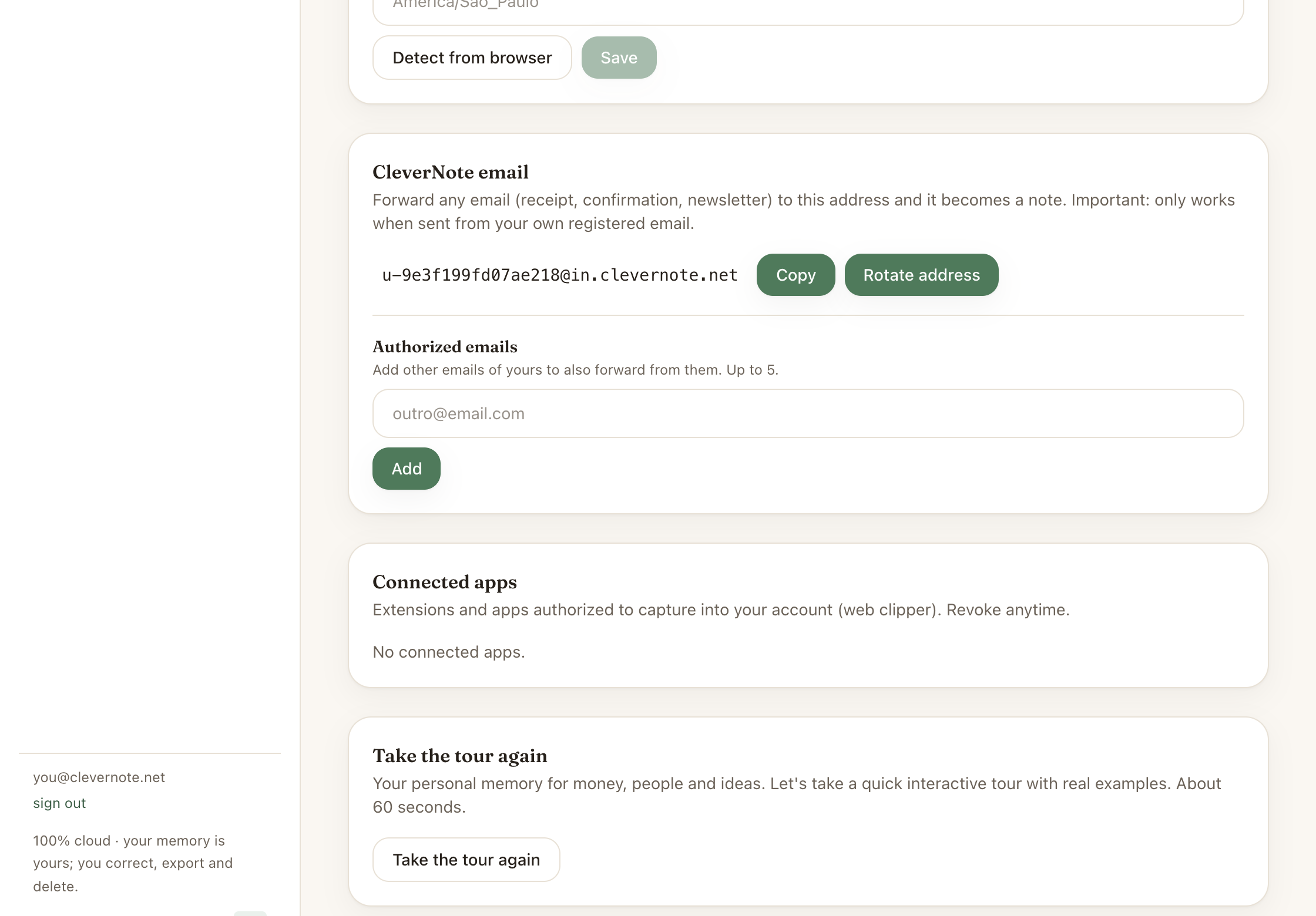
Every CleverNote account gets a unique address in the format:
u-[token]@in.clevernote.netTo find yours:
- Open Settings
- Click Email-in
- Your address appears for copying
Add this address as a contact in your email client with the name “CleverNote” to make forwarding easy.
Security: whose emails are accepted?
By default, the system only accepts emails sent from your account’s primary email address. You can add up to 5 additional authorized addresses in settings.
Emails from unauthorized addresses are silently ignored. This prevents anyone from knowing your email-in address and sending unwanted content.
What gets captured
When you forward an email:
- Subject → note title
- Email body → main content (HTML converted to clean text)
- PDF attachments → go into the SAME note as the email and are read there
- Image attachments → processed via vision (semantic OCR), in the same note
A forwarded email becomes a single note. The attachments (PDF, image) go into that same note and are processed there, alongside the message body.
Common use cases
Invoices: forward the order confirmation email or invoice. CleverNote extracts amount, date and merchant.
PDF contracts: forward the email with the contract attached. The PDF is read and CleverNote extracts parties, dates and relevant amounts.
Reservations and confirmations: forward the restaurant, hotel or service confirmation. CleverNote extracts the date and creates a reminder automatically.
Relevant newsletters: instead of saving the URL, forward the email. The content is indexed for semantic search.
Quotes: received a quote by email? Forward it. CleverNote extracts amount, provider and line items, and links to the company’s record.
Deduplication by Message-ID
If you forward the same email twice accidentally, the system detects it via the email’s Message-ID and discards the duplicate. You won’t end up with two copies of the same note.
Tip: automatic filter in Gmail
You can create a Gmail filter to automatically forward emails from certain categories:
- In Settings → Filters → Create new filter
- Set the criteria (e.g.,
has:attachment from:invoice-*) - Check “Forward to” and enter your CleverNote address
This way, invoices or statements arrive in your archive automatically without manual action.
See also: Web Clipper, Capturing PDFs, Reminder extraction
Frequently asked questions
- Can anyone send me email at that address?
- No. Only emails sent from addresses registered in your account are accepted. This prevents spam and accidental capture from unknown senders.
- Are email attachments captured?
- Yes. PDFs and images attached to the email go into the SAME note as the email and are processed there (OCR/reading).
- Does the email-in address ever change?
- There is no password in CleverNote, so the address doesn't depend on one. It stays fixed unless you click 'Change address' in Settings, which mints a new token and revokes the old address.
Try the app from this guide with your CleverNote account.
Open CleverNote: Notes & Reminders
CleverNote: Notes & Reminders