Stacks: gather a project's notes, your way
This guide is for the CleverNote: Notes & Reminders app. Explore the other blog
Some things you gather with your own hands
CleverNote already reads, classifies and connects every note on its own. But some things are not a category or a topic: they are a project that lives only in your head. The trip to Japan. The kitchen renovation. The gifts for Marina.
Those notes were not born together. They arrived on different days, in different shapes, a screenshot, a voice memo, a photo of a quote. Now you can gather them all into a stack.
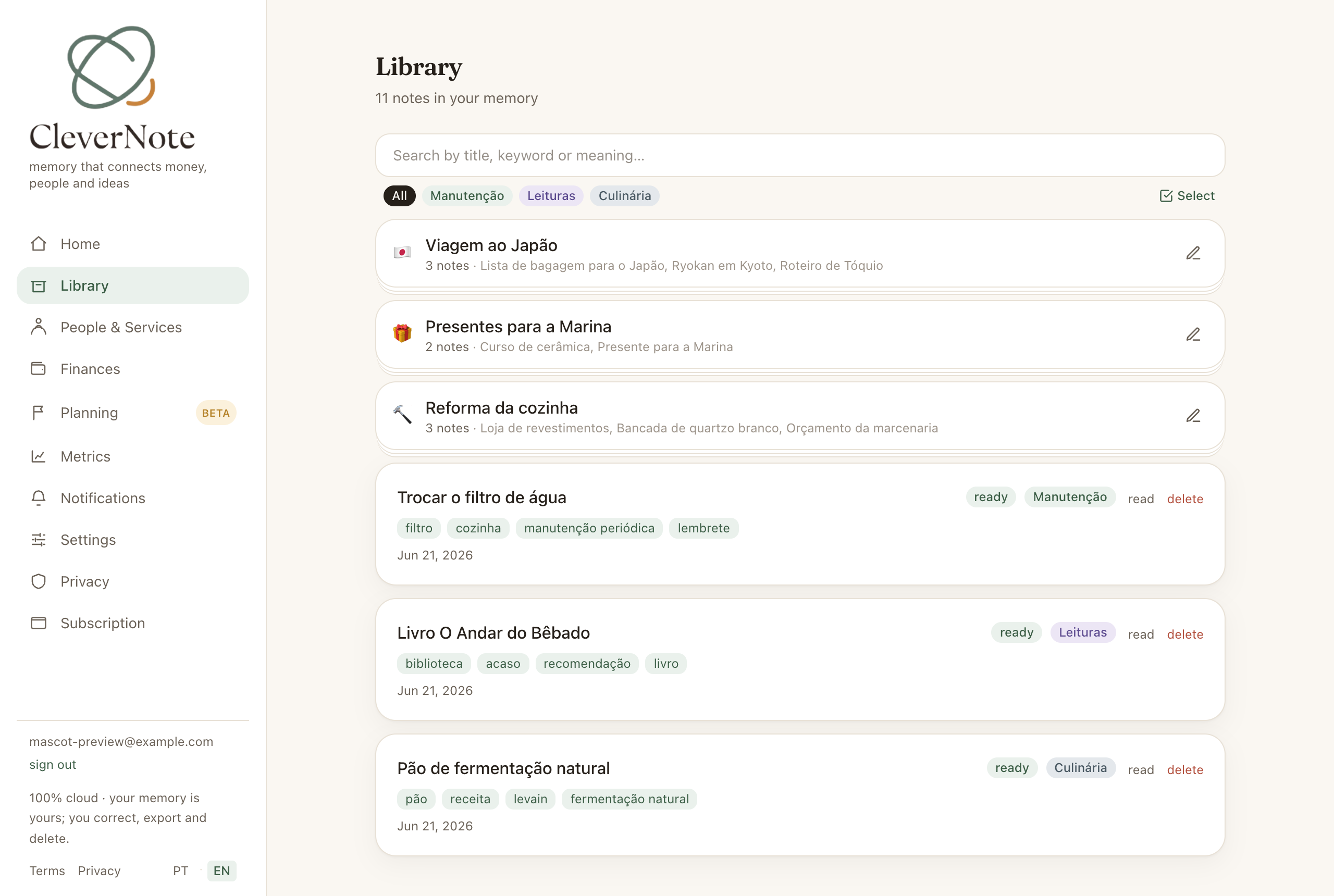
Gather with a gesture
Drag one note onto another and a stack is born. Drag more in and they join. Inside any note there is also a “Group with…” button, to start a stack or drop the note into one that already exists. On your phone, long-press a note to select and gather.
It is your hand doing the organizing, at the pace that makes sense to you.
Gather several at once
Spotted three notes that belong to the same project? Tap Select, check them all and group them in one go. That is the gesture of tidying up your Library, different from finding two that connect and gathering them on the spot.
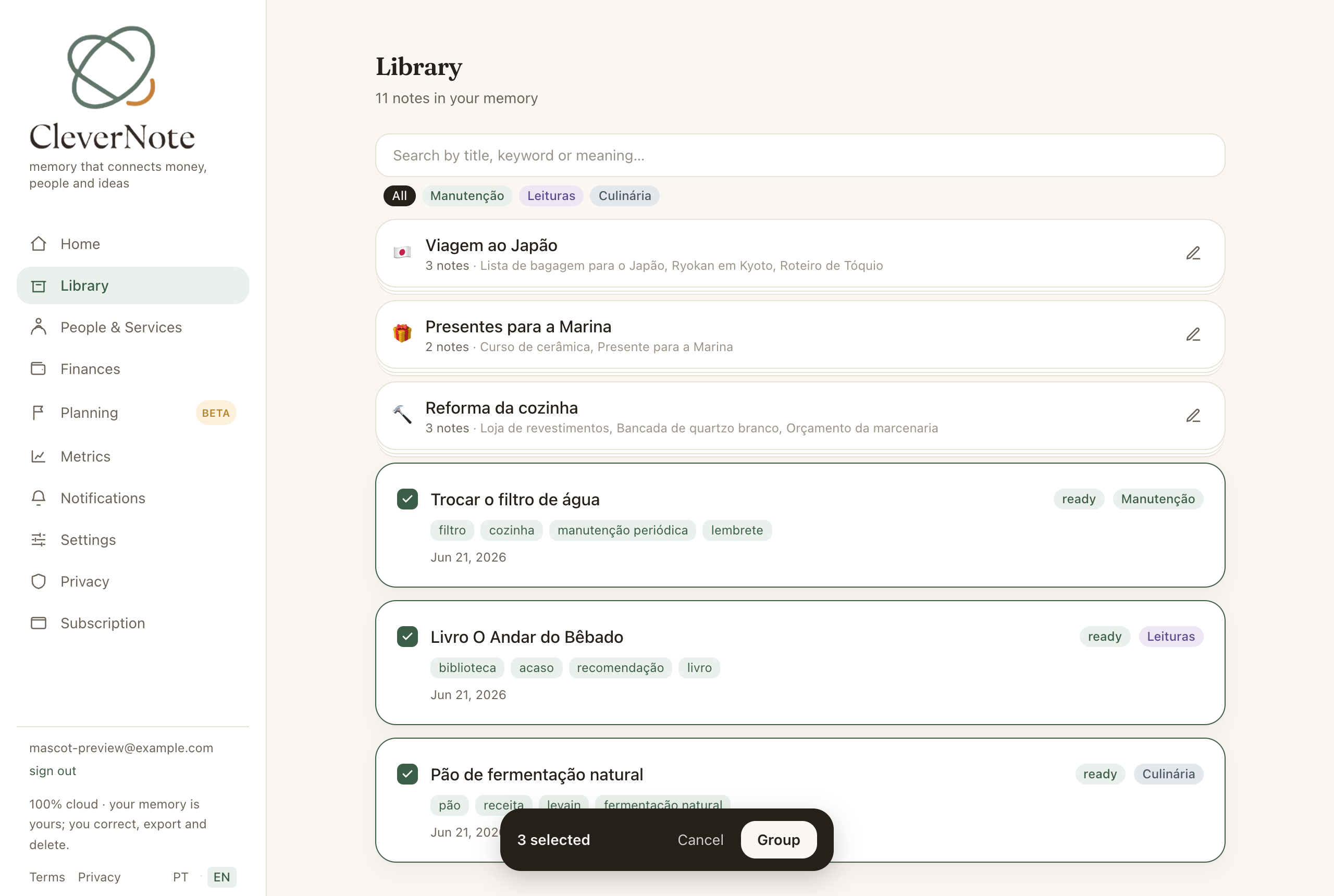
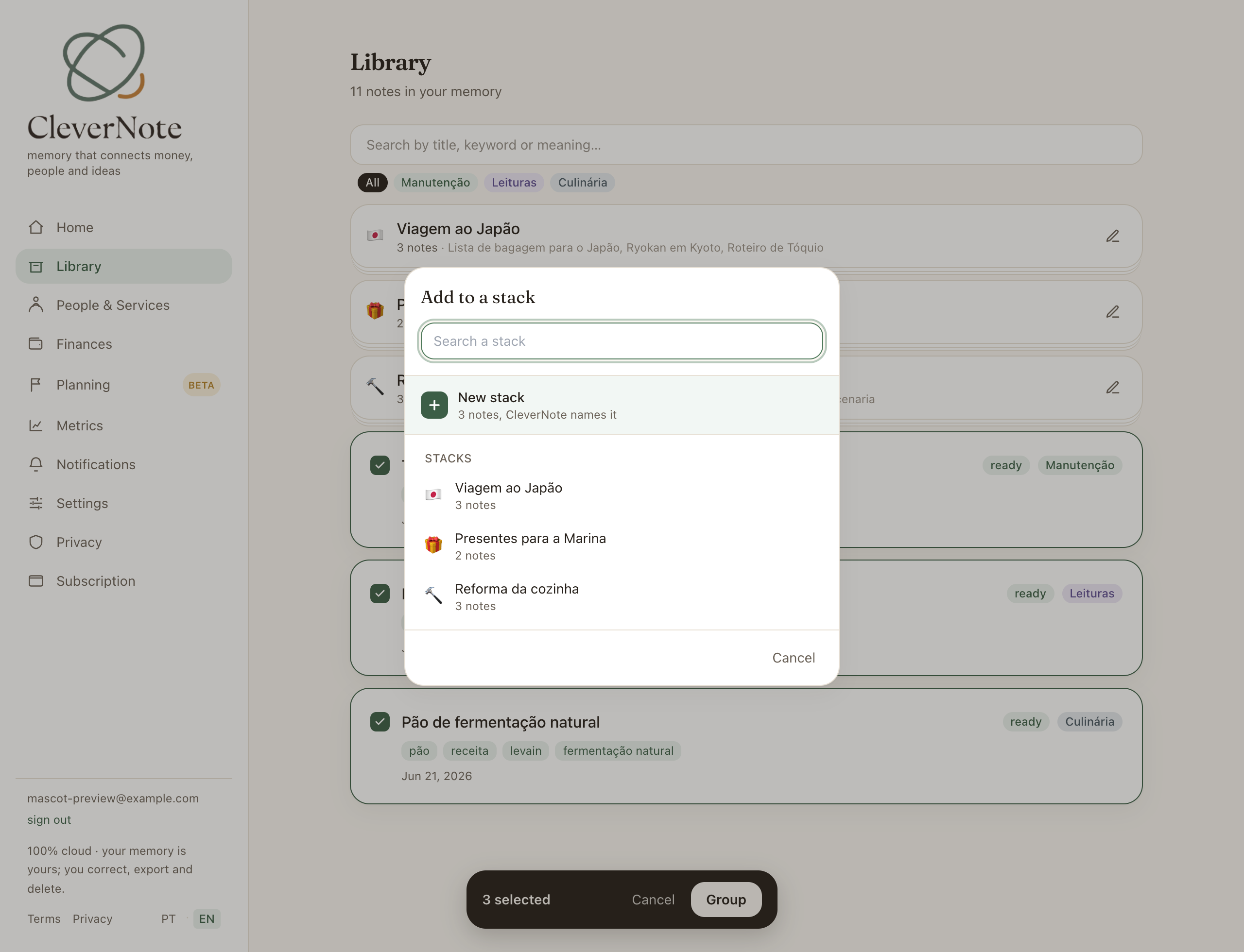
CleverNote gives it a name
When you create a stack, CleverNote looks at the notes you gathered and picks a name (you rename it whenever you like). And when two notes seem to connect, it suggests gathering them. The suggestion comes from CleverNote, the decision is yours.
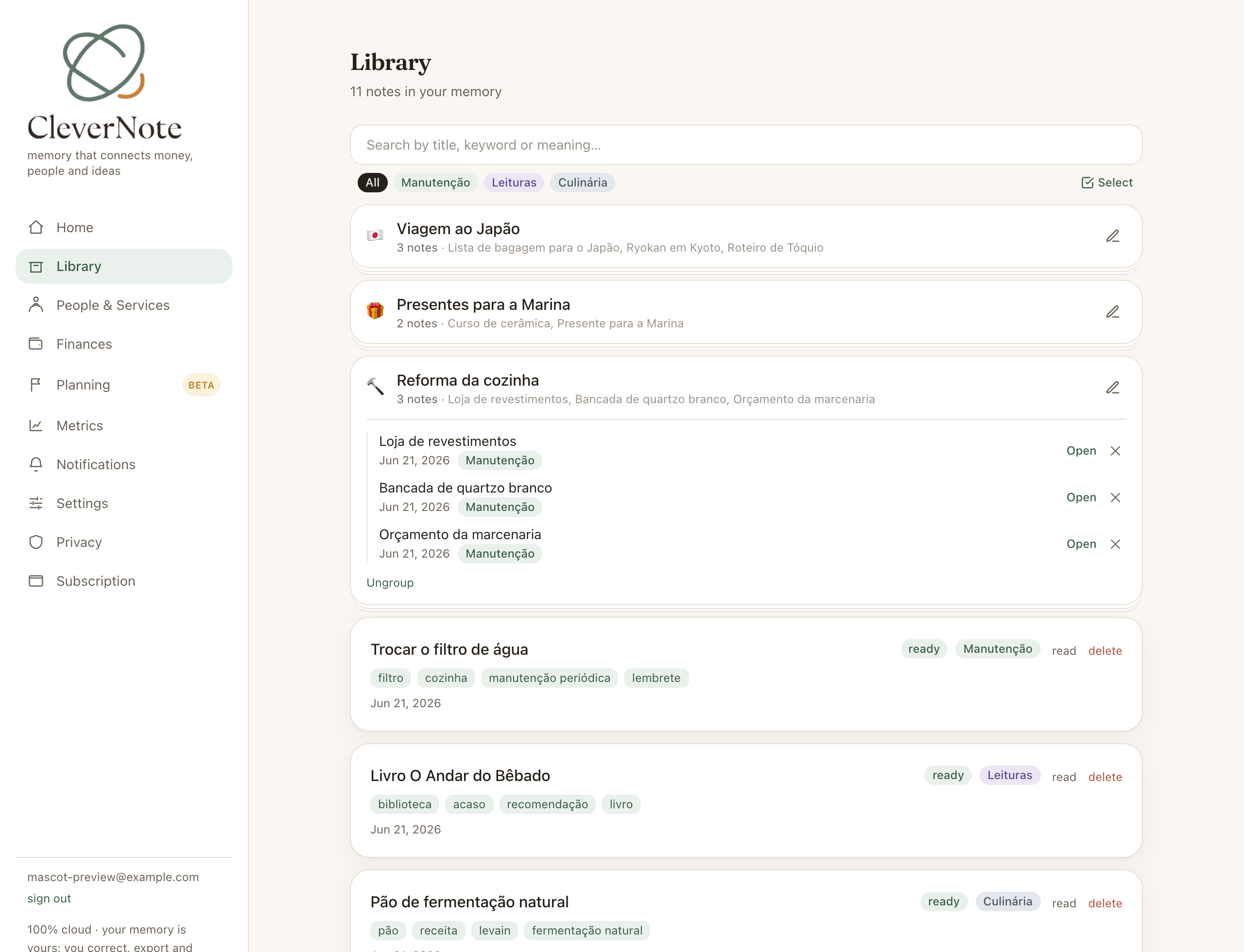
Open it, pull a note out, undo it, no fear
Open the stack to see everything inside. Open each note right from there. Take out one that did not belong to that project. Ungroup the whole thing once it has served its purpose: the notes return loose to your Library, none of them gone. The automatic categories and tags keep working underneath, as always.
How to start
Open the Library, drag one note onto another or tap Select. On the web and in the app, it is one product.
CleverNote keeps understanding every note on its own. Stacks are where you shape what those notes mean together.
Frequently asked questions
- Do stacks replace the automatic categories and tags?
- No. Every note still gets its category and tags on its own. A stack is a layer of yours on top, for the projects only you know about.
- Can a note be in more than one stack?
- Each note lives in one stack at a time. One project at a time keeps the tidying clear, and moving a note to another stack is a single tap.
- Who names the stack?
- CleverNote names it on creation, reading the notes you gathered. Not a fan of the name? Rename it in one tap.
- Does a note disappear if I ungroup a stack?
- No. Ungrouping a stack sets the notes loose, all intact in your Library. A stack is tidying, never a locked drawer.
- Is it part of the free plan?
- It is. Gathering your notes into stacks is part of organizing your Library, at no cost.
Try the app from this guide with your CleverNote account.
Open CleverNote: Notes & Reminders
CleverNote: Notes & Reminders